
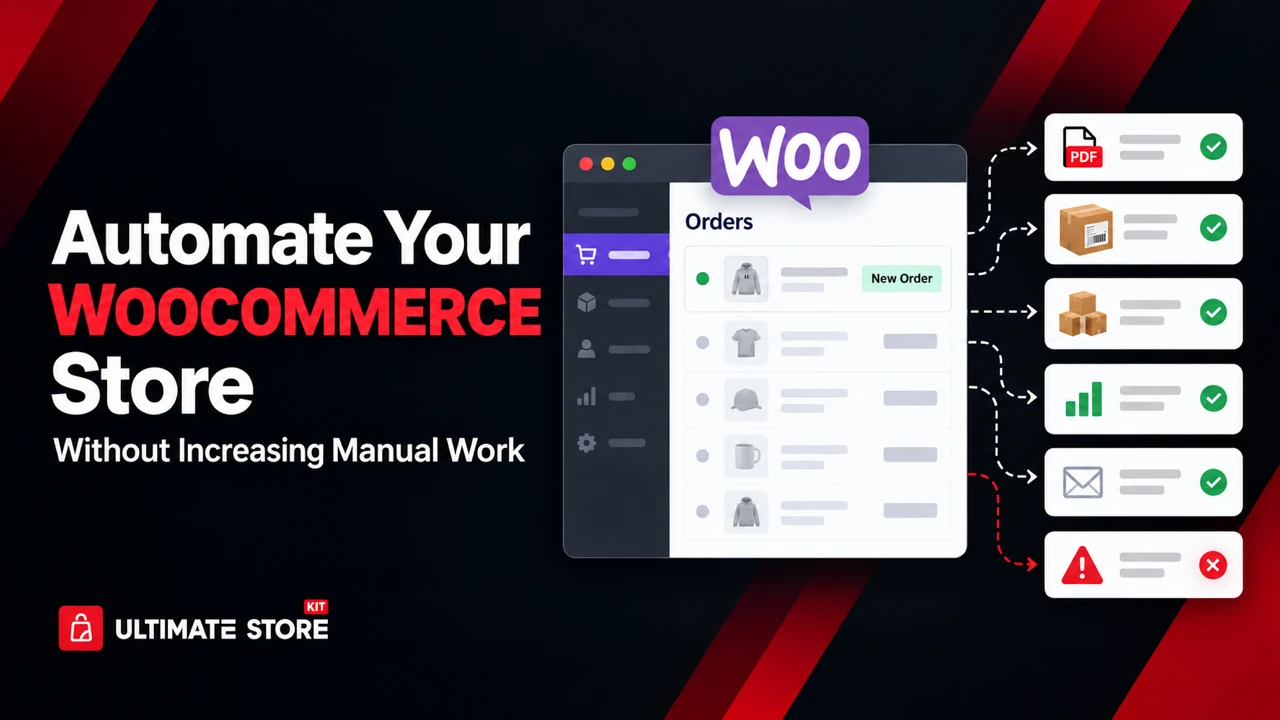
Most store owners do not set out to build a manual business. It happens gradually. You add a plugin that emails you when stock runs low, so now you check your email. You start exporting orders to a spreadsheet for your accountant, so now you export every Friday. You add a coupon campaign that requires hand-generated codes. Six months later, the store runs on a dozen small habits that exist only in your head, and “automation” has quietly become a second job.
That is the trap this article is about. Automation is supposed to remove work, but much WooCommerce automation adds a new layer of monitoring, syncing, and cleanup on top of the work it replaced. The difference between the two outcomes is almost never the plugin itself. It comes down to whether the automation runs on a schedule without being prompted, whether it writes back to the systems you already use, and whether it tells you when it fails rather than failing silently.
A well-automated store has a specific feel to it. Orders come in and invoices attach themselves to the confirmation email. Packing documents will be ready when the warehouse opens. Product data moves between your store, your feed, and your accounting software without anyone having to open a CSV. Customers who abandon a cart hear from you twice, then stop hearing from you. Nobody logs in to “run” anything, and when something does break, you find out from an alert rather than from a customer.
What “Automation Without More Manual Work” Actually Means
Before the plugin list, it helps to name the four properties that separate automation that saves time from automation that creates it. Use these as a filter for anything you install.
It runs on a schedule or a trigger, not on your memory. If a task requires you to log in and click a button, it is a shortcut, not an automation. Scheduled imports, status-triggered document generation, and cron-based feed refreshes all qualify. “Bulk edit” screens usually do not.
It writes to the systems you already use. An automation that produces a report you then have to move somewhere else has only relocated the work. The valuable integrations are the ones that push data into your accounting software, your ad platform, your helpdesk, or your inbox in a final form.
It fails loudly. Silent failure is the single biggest hidden cost in an automated store. A feed that stops refreshing, a cron job that never fires, or a sync that quietly skips 40 orders will cost you more than the manual process ever did. Prefer tools with logs, task histories, and failure notifications.
It reduces decisions, not just clicks. Rules that decide something for you — which coupon applies, which products get recommended, when a refund is approved — save far more time than tools that merely execute a decision you still have to make.
Keep those four in mind as you read. Every plugin below earns its place on at least three of them.
1. Import Export Suite for WooCommerce
Data movement is where manual work accumulates fastest, and it is the least visible on a balance sheet. Supplier price lists arrive as spreadsheets, the accountant wants orders in a specific column order, the warehouse system needs SKUs and stock levels, and a marketplace wants a different export again. The Import Export Suite handles every WooCommerce data type from one interface — products, orders, subscriptions, coupons, customers, and reviews — which matters more than it sounds, because it means one mapping standard and one scheduling system instead of four plugins with four different behaviours.
The automation happens through scheduled import and export jobs. You define a job once — pick the data type, apply filters such as order status or date range, map the columns, choose CSV, XML, or Excel — and then set it to run on a recurring schedule, pulling from or pushing to an FTP/SFTP server or a URL. A supplier who updates a hosted price file nightly can update your catalogue nightly without anyone touching it. Your accountant can receive completed orders every Monday morning without asking. Because the plugin supports update-only imports and column mapping templates, repeat runs do not create duplicates or require remapping, which is exactly the property that makes a scheduled job safe to leave running unattended for months. Start with one job — usually the supplier stock file or the weekly order export — verify two or three cycles, then add the rest.
2. WP Crontrol

Here is the uncomfortable truth about WooCommerce automation: almost all of it depends on WP-Cron, and WP-Cron is not a real scheduler. It fires when someone visits your site, which means a low-traffic store can go hours past a scheduled job, and a misconfigured one can miss it entirely. Scheduled exports, subscription renewals, abandoned cart emails, feed refreshes, and background order processing all queue through this system. When store owners say automation “randomly stopped working,” this is usually why. WP Crontrol is the free plugin that makes the invisible visible.
From the Tools screen it lists every scheduled event with its arguments, schedule, callback function, and next run time, and it lets you edit, pause, resume, delete, or immediately run any of them. It also flags events that have no attached action or have missed their schedule, and warns you when it detects a problem with the cron system as a whole. Importantly for WooCommerce stores, it supports Action Scheduler, the queue WooCommerce uses for recurring payments, subscriptions, and background order processing, so you can see the real state of your store’s task queue rather than guessing. The practical routine: install it, add a custom schedule if your jobs need one, and configure a real server cron to hit wp-cron.php at a fixed interval with WP-Cron’s default behaviour disabled. That one change turns every other automation in this article from “probably ran” into “ran at 2:00 a.m.”
3. WooCommerce PDF Invoices, Packing Slips and Credit Notes
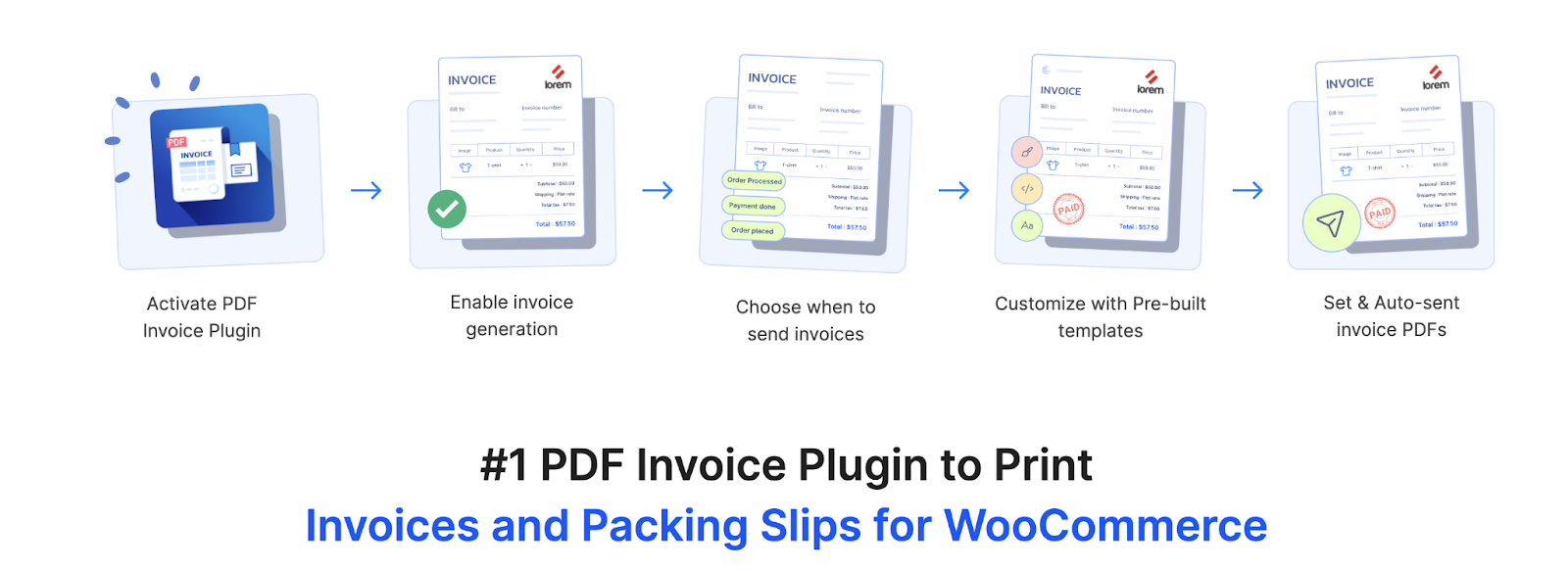
Invoicing is the classic example of a task that is trivial once and crushing at volume. Generating a PDF for one order takes thirty seconds; doing it for 300 orders a month is a part-time job, and doing it late creates support tickets and accounting gaps. This PDF invoices & Packing Slips for WooCommerce plugin removes the task entirely by generating invoices automatically at a trigger you choose — order placed, payment completed, or a specific status change — and attaching them to the corresponding WooCommerce order email. The customer receives the document with the confirmation they were already going to open, so nobody has to send anything and nobody has to ask.
Beyond the base automation, the settings are where the manual work really disappears. Invoice numbering runs on your own sequential format with prefixes, suffixes, and per-year resets, so you are not reconciling numbers by hand at year end. Tax fields, VAT and GST numbers, company details, and legally required text are configured once and applied to every document. Credit notes generate automatically when an order is refunded, which closes the loop that most stores handle manually through email. Bulk generation and download cover historical orders, and the documents can be regenerated after an order edit so the PDF and the order never drift apart. If you need control over layout, the Customizer for WooCommerce PDF Invoices adds a drag-and-drop editor, and the QR Code add-on embeds order and invoice data for countries that mandate it. Pair it with Sequential Order Numbers for WooCommerce if your order IDs also need to follow a clean, human-readable sequence.
4. QuickBooks Sync for WooCommerce

Generating invoices automatically solves the customer-facing half of accounting. The internal half — getting those transactions into your books — is where most stores still run on exports and copy-paste. QuickBooks Sync for WooCommerce is the official WooCommerce extension for connecting a store to QuickBooks, and it works with QuickBooks Online, Desktop, and POS. It syncs orders, customers, products, payments, and inventory automatically, in near real time, and it maps line items, taxes, discounts, shipping, and transaction fees according to rules you set once.
What makes it a genuine automation rather than a data pipe is the level of control over how records are created. You can choose whether a WooCommerce order becomes an invoice, sales receipt, sales order, or estimate in QuickBooks, decide which payment accounts and classes to use, and control whether product and inventory sync flows one way or both. Sync status appears inside the WooCommerce order screen and in order notes, so a failed record is visible where you are already working instead of buried in a log you never open. There is a free tier for lower order volumes, with paid plans for higher throughput. The result for most stores is the elimination of the monthly export-and-import ritual, plus an inventory count that agrees with the books without a reconciliation session. If you use Xero or another accounting platform instead, the same principle applies — look for a native two-way sync before you reach for a spreadsheet workflow.
5. WooCommerce Shipping Labels, Dispatch Labels and Delivery Notes
Fulfilment paperwork is a deceptively expensive manual task because it happens at the worst possible moment: when orders are stacking up and someone is standing at a printer. This WooCommerce Shipping Labels, Dispatch Labels and Delivery Notes plugin auto-generates shipping labels, dispatch labels, and delivery notes and ties their creation to order status, so the documents exist before anyone goes looking for them. Layout, dimensions, fields, and branding are configured once, and every subsequent order produces a consistent document without a decision being made.
The scale advantage shows up in bulk operations. You can generate and print documents for a whole batch of orders from the order list rather than opening them one at a time, which turns a morning of clicking into a single action. Because the appearance and content are template-driven, a change to your return address or a new carrier requirement is one edit rather than a re-do of every document. For stores that pick and pack in a warehouse, the WooCommerce Picklists plugin generates picklists automatically when an order reaches a status you specify, and WooCommerce Address Labels handles bulk address label printing. Together they cover the paper trail from order to dispatch with no per-order human step, leaving your team to handle only the exceptions.
6. AfterShip for WooCommerce
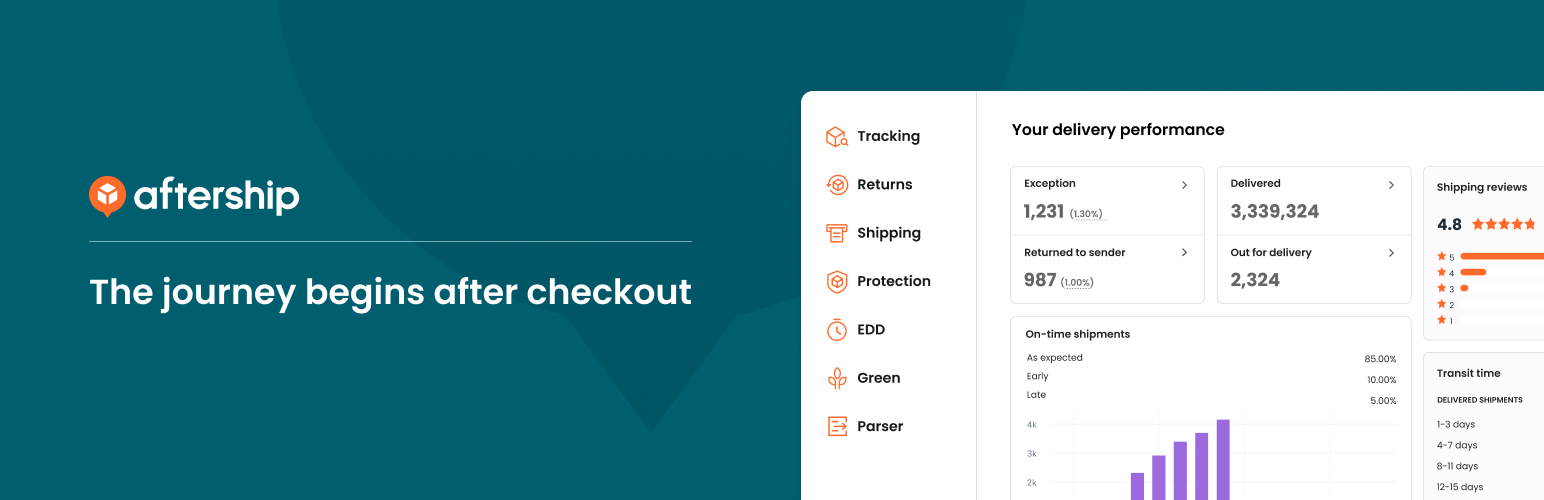
Once a parcel leaves the building, the manual work shifts to “where is my order?” tickets — the highest-volume, lowest-value support category in ecommerce. AfterShip automates the answer before the question is asked. It imports WooCommerce orders and tracking numbers automatically, tracks shipments across a very large carrier network, and sends proactive delivery notifications to customers at the status changes that matter: shipped, out for delivery, delivered, and exception.
The automation payoff is twofold. First, each notification removes a support contact that would otherwise have arrived by email. Second, the centralised shipment dashboard surfaces problem parcels — stuck, delayed, or failed deliveries — as a list you can act on, instead of you discovering them one angry message at a time. Tracking information also appears on the customer’s order page, so self-service works for the people who prefer to check rather than wait. The setup work is small: connect the store, map your carriers, choose which notification triggers to enable, and brand the tracking page so it does not look like a third-party tool. If you only automate one post-purchase process this year, this is usually the one with the fastest visible reduction in inbox volume.
7. Zapier Integration for WooCommerce

Every store eventually has a process that lives outside WordPress. A high-value order should create a task for the sales team. A wholesale signup should land in the CRM. Refunds should be posted to a finance channel. Nightly order data should append to a shared spreadsheet the operations manager actually uses. These are the gaps where manual work hides, because no single plugin owns them. The official Zapier extension is the general-purpose connector that closes them, syncing orders, products, customers, coupons, subscriptions, memberships, and bookings with thousands of other apps in both directions.
Two-way support is the feature that matters most here, and it is often overlooked. Most connectors only push data out of WooCommerce; this one can also create and update store data from an external trigger, so a product added to a supplier system or a customer record updated in the CRM can flow back in. The plugin adds a task history screen inside WordPress showing every communication between your store and Zapier, including failures — which satisfies the “fails loudly” rule and makes debugging a matter of reading a screen rather than guessing. Start with three or four high-value zaps rather than a sprawl of twenty; the maintenance cost of a connector is proportional to how many workflows depend on it. If you would rather keep automation entirely on your own server, the next tool is the alternative to consider.
8. Smart Coupons for WooCommerce
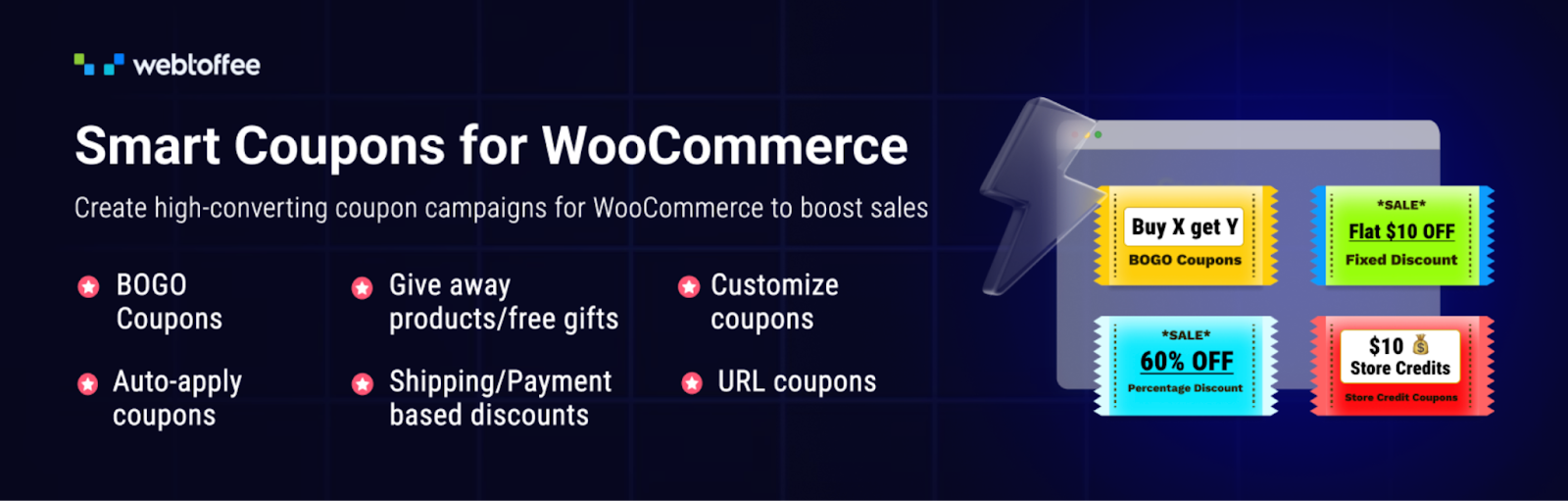
Promotions are a surprisingly manual category. Generating codes, emailing them, checking eligibility, issuing store credit for a returned item, applying a BOGO rule at the right time — each of these is a small human task that scales badly with order volume. Smart Coupons for WooCommerce replaces those tasks with rules. You can set up BOGO offers, giveaways, gift cards, store credits, and conditional discounts that apply automatically when a cart meets the criteria you define, rather than requiring the customer to find and enter a code or requiring you to intervene.
The automation compounds in the details. Coupons can be auto-generated and emailed on a trigger, store credit can be issued as a balance the customer spends over multiple orders, and usage restrictions — products, categories, customer roles, minimum spend, expiry — are enforced by the plugin instead of by you spotting a misuse after the fact. For campaigns that need volume, the WooCommerce Coupon Generator creates codes in bulk and emails or exports them, and URL Coupons for WooCommerce turns a discount into a shareable link or QR code that applies itself on click, which removes the code-entry step from the customer’s side too. If gift cards are a meaningful revenue line, WebToffee WooCommerce Gift Cards automates purchase, delivery, and redemption end to end.
9. Uncanny Automator
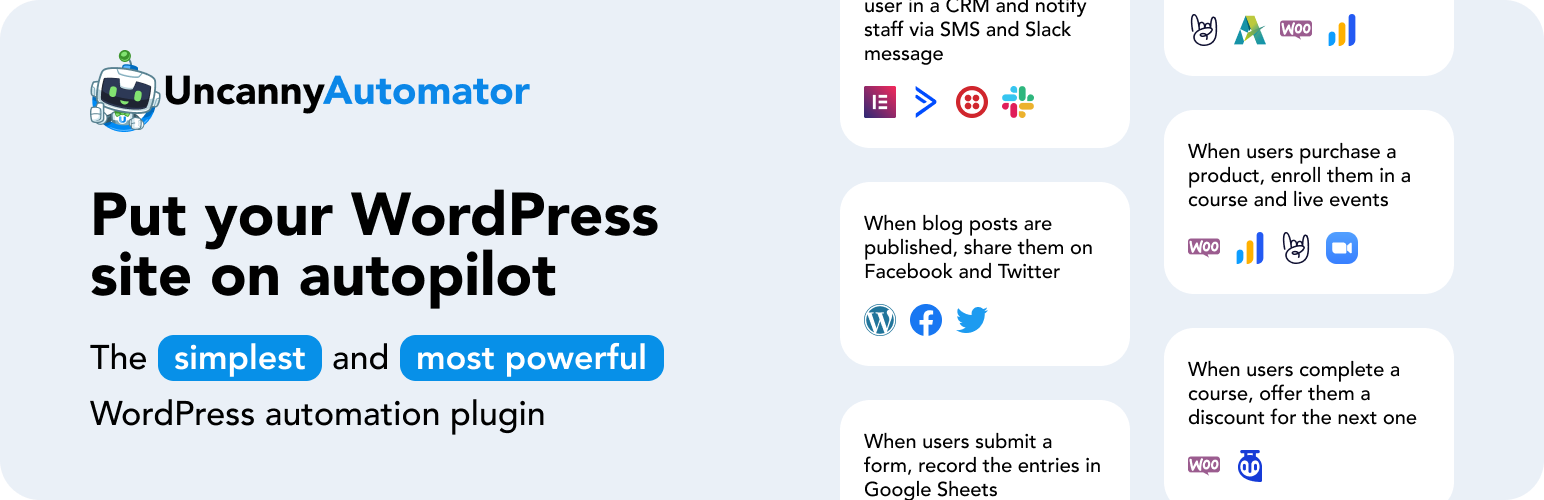
Uncanny Automator is the in-house alternative to cloud automation: a trigger-and-action builder that runs workflows inside WordPress itself, connecting WooCommerce to other plugins on your site and to external apps. You build “recipes” — when this happens, do that — through a visual interface with no code. Typical WooCommerce recipes include enrolling a customer in a course after purchase, tagging a user when they buy from a specific category, sending a Slack alert for orders above a threshold, logging every order to Google Sheets, or creating a CRM record at checkout.
Its real advantage over cloud tools is the depth of its WordPress integrations. Because it runs on your site, it can read and write things that never leave WordPress — user roles, memberships, form submissions, LMS progress — and chain them to WooCommerce events without an API round trip or a per-task cost. For stores that are cautious about routing customer data through third-party servers, that is also a meaningful privacy advantage. There is a free version covering a solid set of integrations, with a paid tier for external apps and higher volumes. The practical pattern most stores land on: Uncanny Automator for anything that stays inside WordPress, Zapier for anything that has to reach a SaaS tool. Running both is common and not redundant.
10. WooCommerce Product Feed & Sync Manager
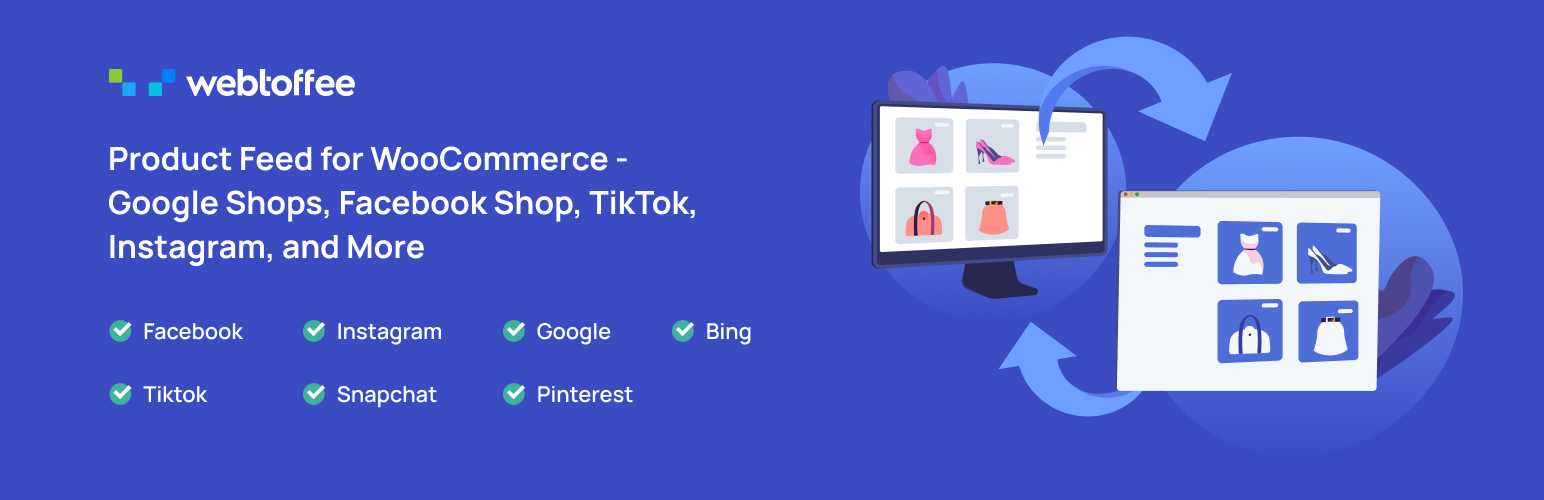
If you advertise or list products anywhere outside your own site, feed maintenance is the manual task that never ends. Prices change, products go out of stock, new variants get added, and every channel wants its own format and its own required attributes. Done by hand it is a weekly export-edit-upload cycle; done badly it means paying for clicks on products you cannot ship. This plugin generates unlimited product feeds for Google, Facebook, Instagram, TikTok, and Pinterest Shops, with the field mapping and category mapping each channel expects.
The automation is in the refresh and the sync. Feeds regenerate on a schedule so price and stock changes propagate without an upload, and the Facebook catalog sync manager keeps WooCommerce products aligned with Facebook and Instagram shops directly rather than through file transfers. Filters let you exclude products that should not be advertised — out of stock items, low-margin lines, specific categories — as a standing rule rather than a manual cull before each upload. Once configured, the only ongoing task is checking the channel’s own diagnostics occasionally for disapproval, which is a review job rather than a data-entry job. For most stores this single change frees up several hours a month and removes an entire class of “we advertised something we did not have” errors.
11. ATUM Inventory Management for WooCommerce
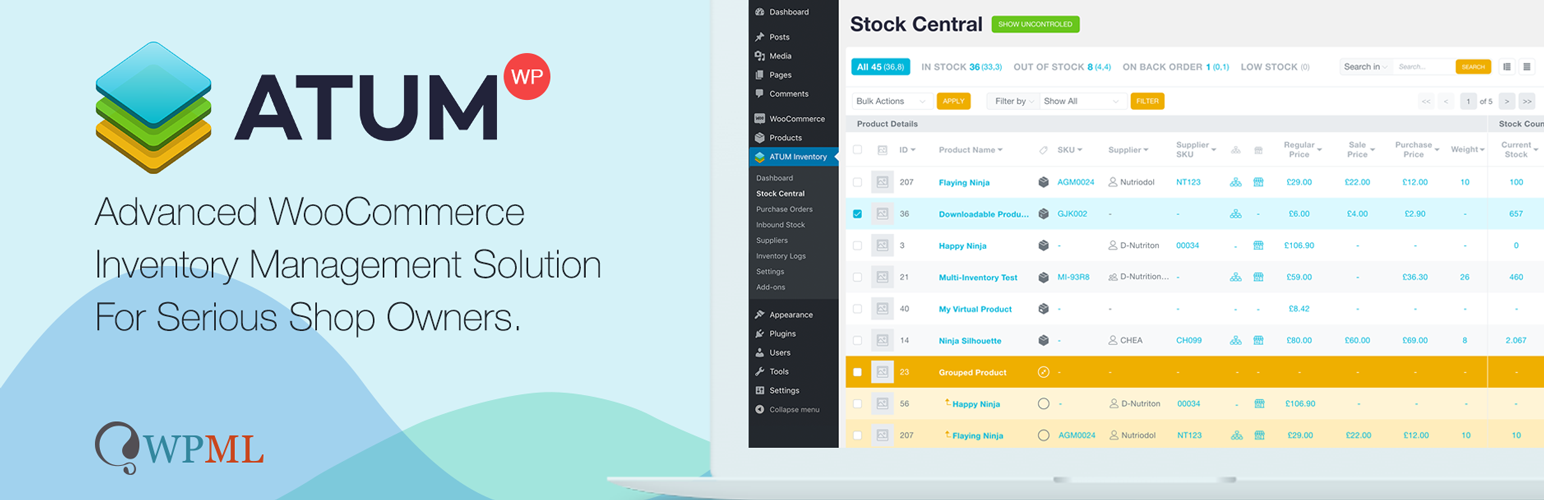
Stock is the area where manual work is most often invisible until it causes damage. Overselling, emergency reorders, and stock counts that don’t reflect reality all stem from the same root cause: inventory decisions made from memory rather than data. ATUM puts the entire WooCommerce inventory on one configurable screen — Stock Central — showing stock levels, SKUs, suppliers, locations, and prices with inline editing, so a stock adjustment takes seconds rather than a product-page round trip per item.
The automation value sits in the layers above that screen. ATUM tracks suppliers and purchase orders, records inbound stock, and logs reserved, lost, and returned stock separately, so a number that has changed can be explained rather than just noticed. Low-stock and out-of-stock widgets surface items that need reordering without a manual audit, and sales statistics give you the reorder signal in the same place as the stock figure. The free version covers a genuinely large amount of ground, with paid add-ons for multi-warehouse, barcode, and production workflows. Pair it with the scheduled supplier imports from the Import Export Suite and your stock numbers update themselves from the source, while ATUM tells you what to do about them.
12. WooCommerce Product Recommendations
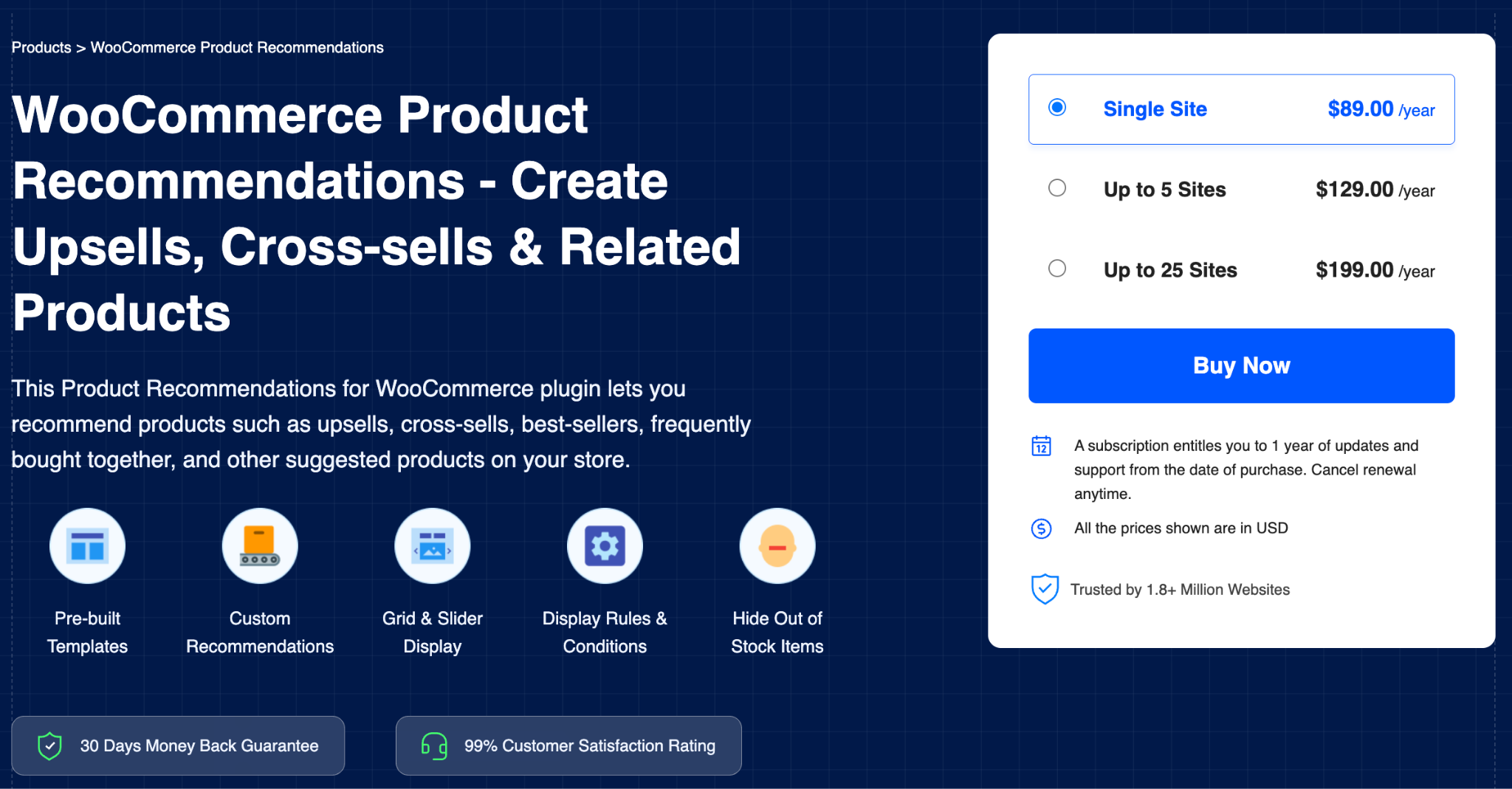
Merchandising is a manual task most stores quietly abandon. Hand-picking upsells and cross-sells for every product works for a catalogue of fifty items and collapses at five hundred, so the related products section goes stale and stops earning anything. WooCommerce Product Recommendations generates recommendations automatically and places them in strategic positions across the store — product pages, cart, checkout, and thank-you pages — so average order value improves without anyone maintaining a matrix of product relationships.
Because the recommendation logic is rule- and behaviour-driven, it continues to work as the catalogue changes. New products are picked up automatically, discontinued ones stop appearing, and best-seller or recently viewed style widgets reflect current data rather than decisions made last quarter. You keep control where control matters — which widget types appear, where they display, and which categories to include or exclude — but you stop making per-product decisions. The honest framing here is that automated recommendations will rarely beat a great manual curation on your top twenty products; they will comfortably beat the nothing-at-all that the other 480 products currently have. Many stores end up doing both: manual cross-sells on hero products, automated recommendations everywhere else.
13. WooCommerce Subscriptions

The most complete form of automation is not automating a task but removing the need for it. Every repeat order a customer places manually is a transaction you had to earn again, with the marketing and support cost that implies. WooCommerce Subscriptions lets customers pay on a weekly, monthly, or annual schedule, integrates with a wide range of payment gateways for automatic recurring payments, and generates each renewal order without anyone in your business doing anything.
The operational details are what keep it from becoming manual work in disguise. Failed payments are retried automatically on a schedule, which recovers revenue that would otherwise require a chase email. Subscribers manage their own plans from the My Account page — upgrading, downgrading, pausing, cancelling, updating a card or shipping address — which removes the largest category of subscription support tickets from your queue. Store owners retain full control from the Edit Subscription screen when a customer needs something unusual. For stores selling consumables, replenishables, memberships, or services, the shift from repeat orders to subscriptions is the single highest-leverage automation available, because it reduces both operational work and customer acquisition pressure at once.
14. GDPR Cookie Consent Plugin for WordPress
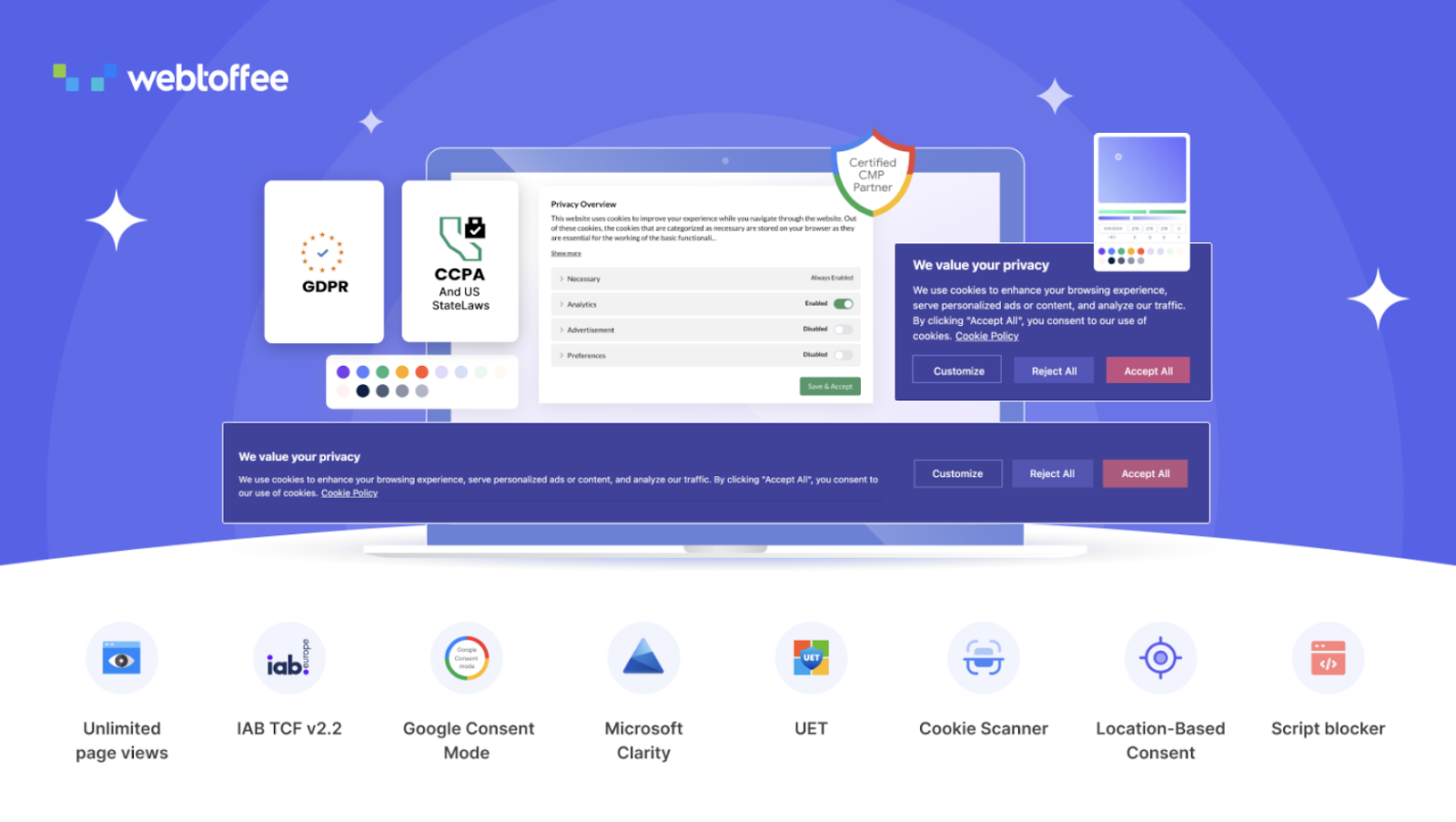
Compliance is the automation category owners forget until it becomes urgent, and it is a genuine source of recurring manual work: rescanning the site after adding a new tracking script, updating a cookie policy, proving that consent was collected, and adjusting for whichever regulation applies to the visitor’s location. This GDPR cookie consent plugin handles GDPR, CCPA, and other major cookie laws, automatically scanning your website for cookies, categorising them, generating the cookie policy, and maintaining consent logs without a manual record-keeping process.
For a WooCommerce store the integration details matter. As a Google-certified CMP it works with Google Consent Mode, along with Microsoft Clarity and UET consent modes, so analytics and ad platforms adjust their behaviour based on consent automatically rather than through custom script blocking you maintain by hand. Geo-targeting applies the right banner and rules by visitor region, so one configuration covers multiple jurisdictions. Scheduled rescans catch cookies introduced by a new plugin or embedded tool before an auditor does. Set it up once, schedule the scan, and compliance becomes a background process instead of a quarterly scramble. If you sell into the EU, the EU Order Withdrawal Button for WooCommerce extends the same idea to order withdrawals, giving you a dedicated dashboard to review, approve, or reject withdrawal requests in one click.
A Sensible Order of Implementation
Automating everything at once is how stores end up with automation they do not trust. A staged rollout gives each layer time to prove itself.
Weeks 1–2: fix the foundation. Install WP Crontrol, switch to a real server cron, and confirm existing scheduled events actually fire. Nothing else is reliable until this is true.
Weeks 3–4: automate documents. Turn on automatic invoice generation and email attachment, then fulfilment documents. This is the fastest visible time saving and it has almost no downside risk.
Weeks 5–6: automate data movement. Set up scheduled imports and exports for supplier and accounting data, then connect accounting sync. Run each job manually once, verify the output file line by line, then schedule it.
Weeks 7–8: automate the customer journey. Abandoned cart recovery, post-purchase sequences, and shipment notifications. Start with two workflows, not ten.
Weeks 9–10: automate merchandising and compliance. Product feeds, recommendations, coupon rules, and consent scanning. These are the ones that quietly decay, so schedule a review reminder as you build them.
Ongoing: review, do not monitor. Once a month, check task histories and failure logs. Once a quarter, read performance numbers and retire what is not earning. That is the entire maintenance burden of a well-built stack.
Content upkeep is manual busywork too. Search & Replace for Elementor bulk-updates text, links, and images across every Elementor page in one pass, with undo and backups built in – one less recurring chore for a growing store.
Frequently Asked Questions
Will installing all of these slow my store down? Most of the work described here happens in the background rather than on page load, so the performance impact is smaller than the plugin count suggests. The exceptions are anything that queries on the front end — recommendation widgets and popups — which should be tested against real page-speed numbers before and after. Keep the stack to plugins you actually use; an unused active plugin is pure overhead.
Do I still need to check anything daily? No. Daily checking is the habit automation is supposed to break. Configure failure notifications, then review logs monthly. If you find yourself opening a dashboard every morning out of anxiety, that usually means one specific automation is not trustworthy — fix or remove that one rather than monitoring all of them.
What breaks first when an automated store scales? Cron reliability and feed freshness, in that order. Both fail silently, which is why they are worth alerting on specifically.
Free or paid plugins? Free tools are fine for the foundation layer, where the functionality is well-defined and stable. For anything touching orders, money, or customer communication, paid plugins with active support are usually cheaper than the hour you will spend debugging at the wrong moment.
Conclusion
A truly automated online store is not defined by how many tools it uses, but by how effectively repetitive tasks are turned into schedules, rules, and triggers. From product updates and order documents to promotions, subscriptions, shipping, accounting, and compliance, each automated process reduces manual work and creates a more consistent operation.
The most effective automation strategy connects every part of the store so that data flows smoothly between systems without relying on spreadsheets or repeated human intervention. When these workflows are well-connected and exceptions are easy to identify, store owners can spend less time managing routine tasks and more time focusing on growth, customer experience, and long-term improvements.